- Open GMail
- Compose a new email or forward the email you wish to print, as well as any attachments, to the CBE Email Print. Click Send.
- Once you have sent the email with the file you wish to print you will receive a confirmation email.
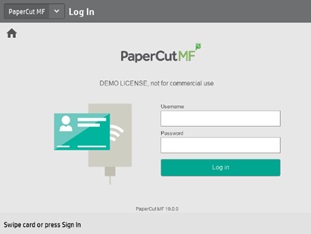
- When you are ready to release your print job, go to any printer and scan your student ID or enter your @educbe.ab username and password to sign in.
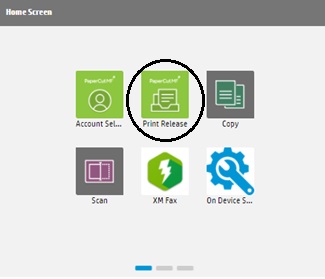
- On the printer, please select Print Release.
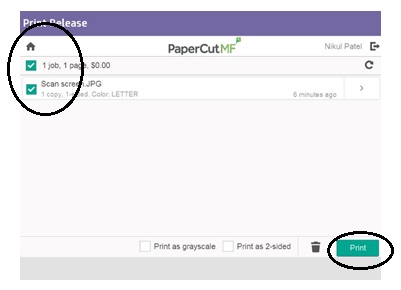
- Once you click Print Release, the following screen will appear. Select the job you want to print and click the print button at the bottom of the screen.
- Select the Sign Out button to log out.
Last modified: 2026-06-03 20:10:26.450822 +0000 UTC