The CBE Wi-Fi network is available at all CBE schools and administrative centres.All CBE issued equipment with Wi-Fi capability will automatically connect to the wireless network.
Non-CBE / personal devices are allowed to connect to the wireless network. The following flows will help instruct a user on how to accomplish this.
Select an Option Below
Guest
Anyone who wants basic access to the internetAvailable: 7:00 AM-10:00 PM
Instructions
Start by selecting the CBE Get Connected network in your Wi-Fi settings
Follow the numbered instructions below
1
Select Guest
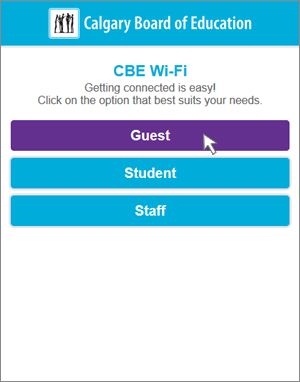
2
Select Guest Access, Accept & Connect
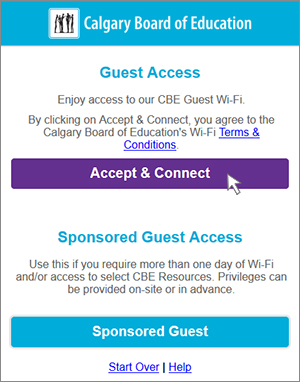
Done! You are now connected to CBE Wireless
Student
Students can connect their phone, computer or other Wi-Fi enabled devices.
Instructions
Start by selecting the CBE Get Connected network in your Wi-Fi settings
Follow the numbered instructions below.
1
Select Student
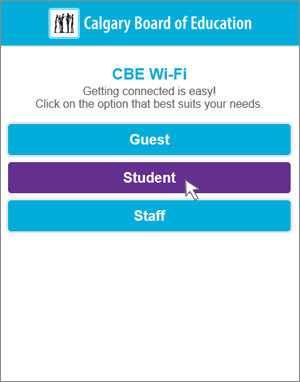
2
*New* Microsoft Sign In PageEnter your CBEStudentID# and select Next
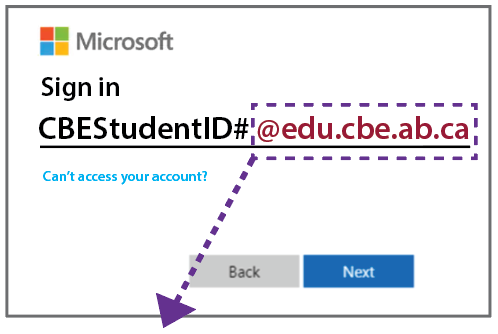
Add to the end of your CBEStudentID# when signing in
3
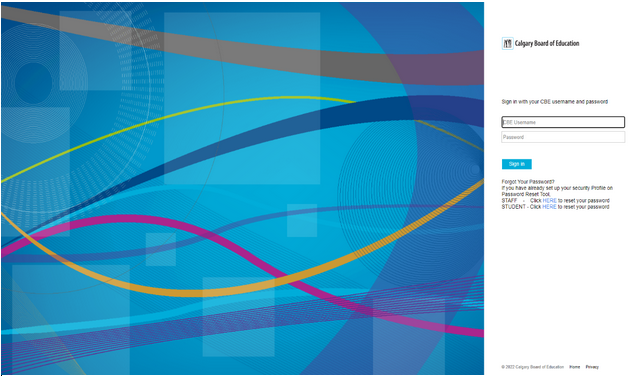
*New* CBE Sign In Page Enter your credentials and select Sign In
4
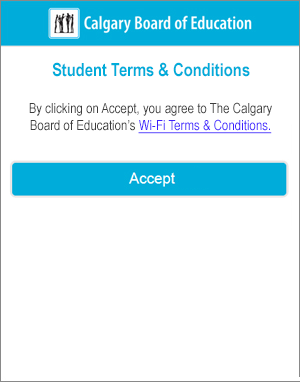
Click Accept
5
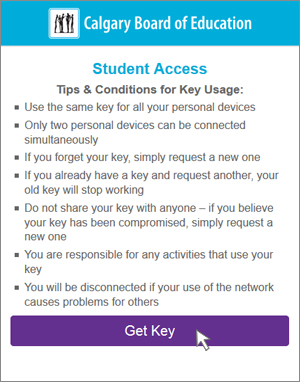
Read & Select Get Key
6
Copy the 20-digit Key
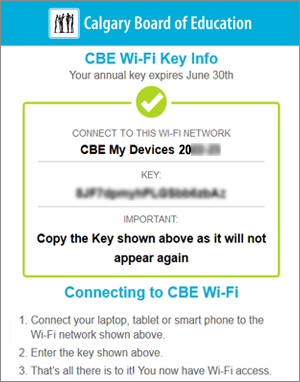
- The key shown above is an example only
- If you have other mobile devices use this same key
- How to copy/paste on Android / Apple Devices
7
Go to Wi-Fi settings on your device and connect toCBE My Devices network
*CBE My Devices network name will use the current school year.
8
When prompted, type in your Wi-Fi Key. Note | Prompt may appear different on various devices
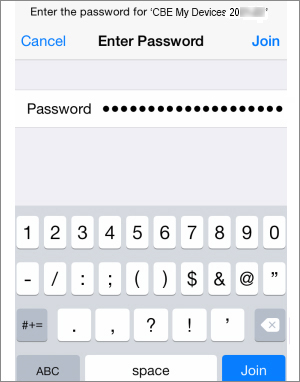
9
You are now connected!
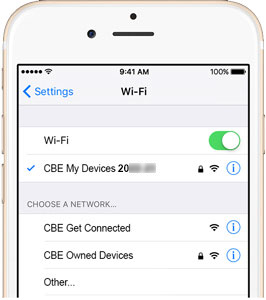
Staff
Staff can connect their personal devices such as phones, iPad’s, personal computers
Instructions
Start by selecting the CBE Get Connected network in your Wi-Fi settings
Follow the numbered instructions below.
1
Select Staff
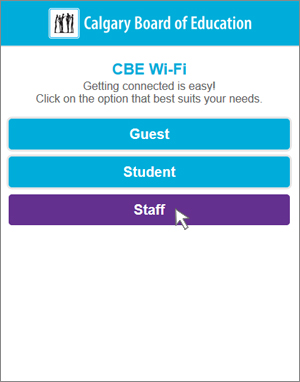
2
*New* Microsoft Sign In ScreenEnter Username and select Next
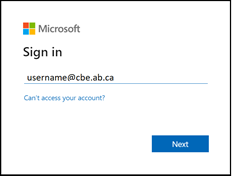
3
*New* CBE Sign In PageEnter your credentials and select Next
4
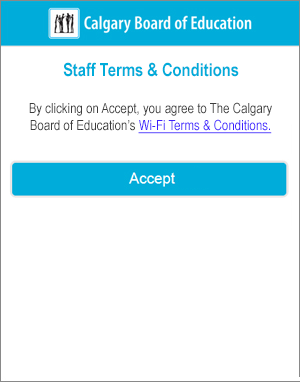
Click Accept
5
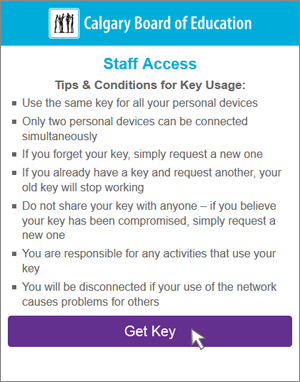
Read Tips and select Get Key
After selecting Get Key, you will receive a welcome email. Your Wi-Fi Key will not be included in this email
6
Copy the 20-digit Key
- The key shown above is an example only
- If you have other mobile devices use this same key
- How to copy/paste on Android / Apple Devices
7
Go to Wi-Fi settings on your device and connect to CBE My Devices network
*CBE My Devices network name will use the current school year.
8
When prompted, type in your Wi-Fi Key. Note | Prompt may appear different on various devices
9
You are now connected!
Sponsored Guest
A guest who requires more than one day of Wi-Fi access to select CBE resources.
Staff: Go to wifixiq.cbe.ab.ca on your desktop to initiate the workflow on behalf of a sponsored guest.
Instructions
Start by selecting CBE Get Connected network in your Wi-Fi settings
Follow the numbered instructions below.
1
Select Guest
2
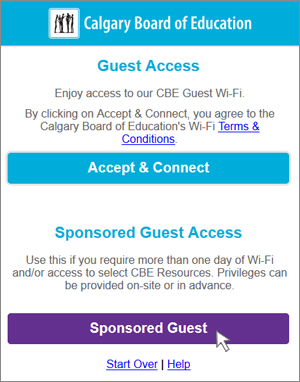
Select Sponsored Guest
3
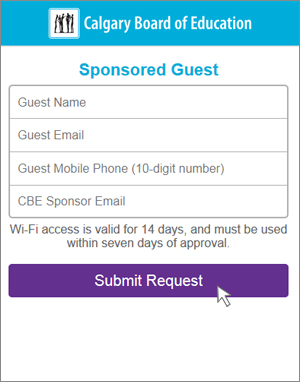
Complete Sponsored Guest Fields
A mobile phone number is required, to receive a text message (SMS) that will contain a Wi-Fi Key (password) to access the CBE My Devices network
4
An email has now been sent to the CBE Sponsor to begin the approval process.
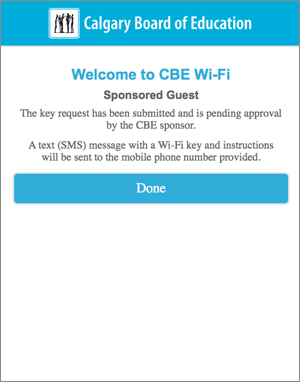
5
A Wi-Fi Key will be sent via text message when you are approved. Go to Wi-Fi settings on your device and connect to the CBE My Devices network
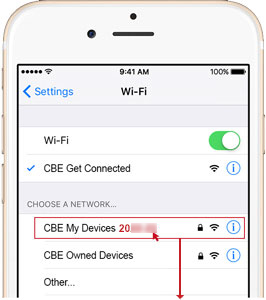
6
When prompted, type in your Wi-Fi Key. Note | Prompt may appear different on various devices
7
You are now connected!
Having Issues?
I forgot my password. How do I reset it?
- Students: passwordhub.cbe.ab.ca
- Staff: password.cbe.ab.ca
I get the message, “Oops... something went wrong”, what do I do?
- Select Start Over and try again
What’s the different between a Sponsored Guest and a Guest?
- A Sponsored Guest is a guest who requires more than one day of Wi-Fi and/or access to select CBE resources
- Guest is for basic web access only. There is restricted filtering and users cannot access CBE internal files
How many personal devices can I connect at the same time ?
- Ensure that you have not entered any extra spaces or other characters as the system will count these as part of your password and fail.
- The Guest network can connect an unlimited number of devices
- For Staff, Students and Sponsored Guests, only 2 devices can be connected to CBE My Devices simultaneously
If I try to type in my Wi-Fi Key, I keep getting an 'Incorrect password for CBE My Devices.'
- If the issues persists, Forget the CBE My Devices network, wait for 60 minutes and try signing in again.
Safety
The safety and security of our students is always our top priority. This includes online safety. Here’s how we’re keeping students safe when they use our technology or internet:
- Our Wi-Fi procedures adhere to the most recent safety standards established by Health Canada.
- We have implemented a role based content filtering system.
- Our schools have been asked to develop and implement digital citizenship plans that ensure both staff and students have the knowledge and skills to use the internet safely and appropriately. For more information on your school’s plan, contact your school’s administrator.
Last modified: 2026-04-28 17:13:24.379279 +0000 UTC