The Employee Password Tool is the recommended method for all CBE staff and contractors to change or reset their passwords. This tool is not for students.
On your first sign-in to a CBE system, you'll be prompted to set up recovery options. We highly recommend adding both a mobile phone number and a personal email address. Keeping these details current will allow you to quickly reset your password if needed.
Jump to a Section
Attention Mac Users
Before changing your password, review how to change and sync your password on a Mac to avoid lockout.
View Instructions
New CBE Employees: Setup Your Recovery Options (First Sign-In)
Recovery options, like your mobile phone number and personal email, are essential for verifying your identity when you need to reset your CBE password. Please add both; these details are used only for identity checks and for no other purpose
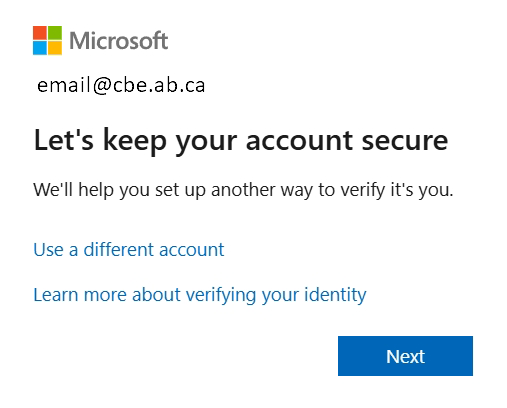
- Go to https://aka.ms/ssprsetup and sign-in to setup your recovery options.
- New employees and those who haven't yet set up their recovery options will be asked to add a mobile phone number. Simply follow the on-screen prompts to complete this step.
- After adding your mobile phone number, proceed to Add or Manage Your Recovery Options to include your personal email.
Current CBE Employees: Add or Manage Your Recovery Options
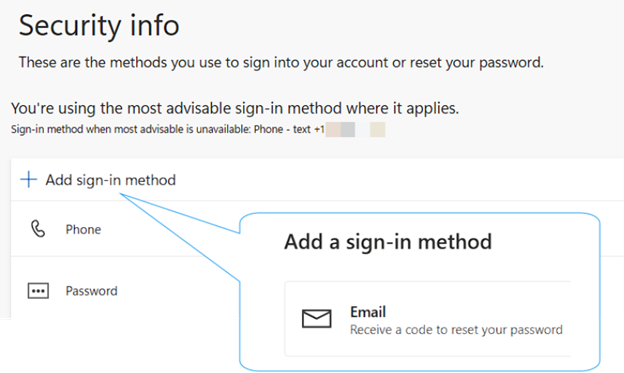
- Go to https://aka.ms/ssprsetup and sign in.You will be asked to “Verify your identity" due to the secure nature of this page.
- To add a method (for example, a personal email), click 'Add sign-in method' and follow the prompts.
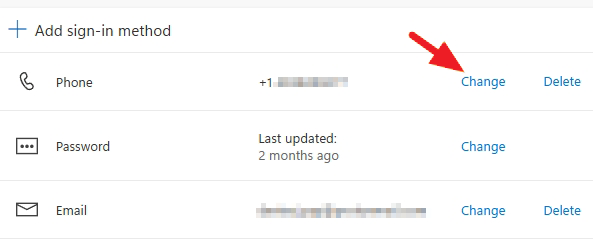
- To edit a method (for example, a new phone number), click 'Change' and follow the prompts.
Forgot your Password/Passphrase (Reset)
Use this feature to reset your password if you forget it. Your recovery options need to be set up first.
Attention Mac Users
Before changing your password, review how to change and sync your password on a Mac to avoid lockout.
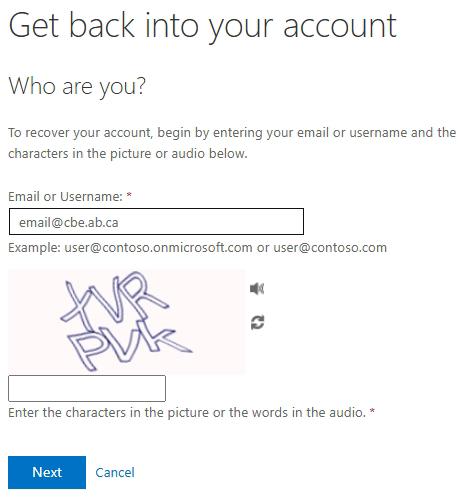
- Go to https://aka.ms/sspr.
- Enter your CBE email and complete the CAPTCHA, then follow the prompts.
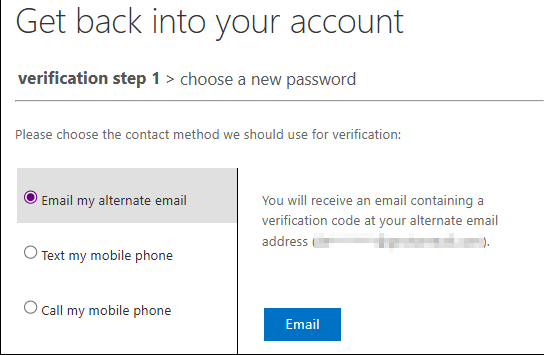
- Choose a recovery option (e-mail or text) to receive your verification code.
Only masked parts of your email or phone are shown to protect your privacy. - Enter the verification code, then create your new password/passphrase.Your password/passphrase must be a minimum of 12 characters. Review the Passwords & Passphrases Insite page for tips on creating a strong passphrase.
Change Your Password
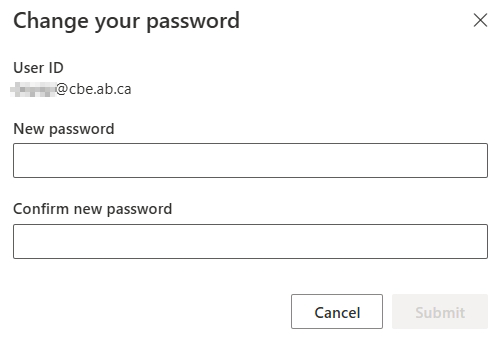
- Go to https://mysignins.microsoft.com/security-info/password/change and follow the prompts.
- You will be asked to “Verify your identity" due to the secure nature of this page.
- Create your new password/passphrase.
Note: If you see password rules that differ from CBE standards, follow CBE guidance.
Last modified: 2026-04-28 20:52:35.424187 +0000 UTC